
How to set up
Alerts
Tell PhotoWatch what a great shoot looks like. It watches the forecast around the clock and lets you know when conditions are looking good.
1
Create a new alert
Tap the Alerts tab, then + New alert. Give it a name, choose a shoot type (Sunrise, Sunset, Astro or Custom) and set your Notification Advance Time: 12 hours means you hear the evening before a sunrise.
2
Choose your locations
Tap Locations for this alert to open the list, then switch on each spot you want this alert to watch. One alert can compare all your favourite spots and tell you which one looks best.
3
Add your conditions
Tap the conditions you want for the shot: cloud, wind and rain, and with Pro, fog, recent rain for waterfalls, tides, swell and the night sky.
Tip: Keep it simple. Two to three conditions work best.
4
Put them in order
Press and hold the ⋮⋮ handle and drag to arrange your conditions however you like; the number shows its place.
Tip: Every condition in your list must be met before an alert is sent, so only add the ones that really matter to you.
5
Fine-tune what you’ll accept PRO
Just below your list of conditions, tap Fine-tune to open it. Each condition shows its own choices. For cloud, choose More than or Less than, then tap a value. For wind, rain and fog, tap one or more chips: each chip is an exact band, and any chip you pick counts. High cloud more than 40% and low cloud less than 20% is the classic recipe for a glowing sky over a clear horizon.
Tip: Not on Pro? Fine-tune shows the values PhotoWatch uses for you. Tap any value to see what Pro adds.
6
Adding a tide or swell? Pick your chips PRO
Tide and Swell each have Low, Medium and High chips. Pick one or more, and any one you pick counts. Until you pick one, the condition shows an amber Please Fine-Tune warning and Save stays greyed out. Tap the warning to jump straight to it.
Tip: Moon Phase works the same way: pick one or more phases in Fine-tune, and any of them counts within 2 days either side.
7
Keep or switch off the built-in checks PRO
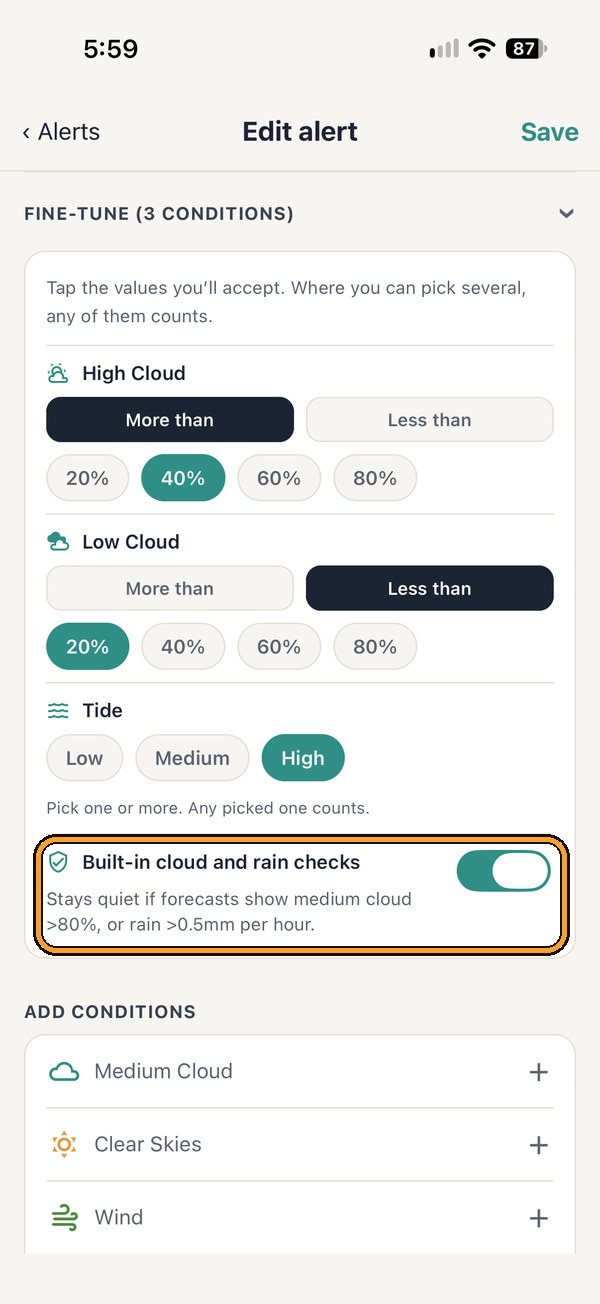
At the bottom of Fine-tune, the Built-in cloud and rain checks switch is on by default, so PhotoWatch stays quiet when the sky looks blocked or rain is forecast. The line under it lists only the checks that can still stop this alert. Switch it off and this alert can fire even then.
Tip: Leave it on unless you’re chasing moody, stormy or misty shots. Here low cloud isn’t listed, because the alert already asks for low cloud less than 20%. On the free plan the checks are always on.
8
Pick your days and save
Choose the days you can shoot (or tap Every day), then tap Save. That’s it: PhotoWatch now watches for you.
How an alert decides
Built-in checks, even if your alert doesn’t mention them
At sunrise, sunset and astro times the sun is hidden, so PhotoWatch stays quiet. For astro alerts (and any alert with Galactic Core Visible PRO), medium or high cloud at 60% or more hides the stars too.
At sunrise and sunset, a near-solid middle layer blocks the light, so PhotoWatch stays quiet. Broken medium cloud below 80% can still give great colour.
If this much rain or more is forecast at your shoot time, no alert is sent, whatever kind of alert it is.
The checks step aside when your alert asks for that weather: Rain (Light, Moderate or Heavy), or a cloud layer set to More than (on the free plan a cloud condition always means 60% or more; with Pro you choose the value in Fine-tune). Fog PRO and Potential Thunderstorm PRO do the same, and the medium cloud check also steps aside for Medium Cloud or Clear Skies. With Pro you can switch the checks off for one alert (step 7).
Everything lines up
- ✓High cloud 55%
- ✓Low cloud 10%
- ✓Wind 8 km/h
A bit windy
- ✓High cloud 55%
- ✓Low cloud 10%
- ✗Wind 25 km/h
Rain moving in
- ✓High cloud 55%
- ✓Low cloud 10%
- ✓Wind 8 km/h
- ✗Rain 1.2 mm an hour
Everything you can fine-tune
With Pro, these are the choices in Fine-tune. Without Pro, PhotoWatch uses the default shown under each one.
| Condition | Your choices |
|---|---|
| High, Medium & Low Cloud | More than or Less than 20%, 40%, 60% or 80% (the value itself counts)Default: 60% or more |
| Clear Skies | Cloud cover less than 5%, 10% or 20%, for every cloud layerDefault: less than 10% |
| Wind | Minimal (under 6 km/h), Light (6 to 19), Moderate (20 to 38), Heavy (39 and above). Pick one or more.Default: Light. Shown in your own wind units (km/h, mph or knots). |
| Rain | None (dry), Light (under 2.5 mm an hour), Moderate (2.5 to 7.6), Heavy (over 7.6). Pick one or more.Default: any rain (Light, Moderate or Heavy) |
| Fog PRO | None (under 20%), Light (20 to 39%), Heavy (40% and above). Pick one or more.Default: Light. The fog has to last, so a brief one-hour patch doesn’t count. |
| Recent Rain PRO | Rainfall Window: Day before, 1-2 days before or 1-3 days before. Minimum in Rainfall Window: 5, 10, 20 or 40 mm, added up over those days.Default: at least 20 mm over the 1-3 days before |
| Tide PRO | Low, Medium or High. Pick one or more.No default: pick at least one |
| Swell PRO | Low (under 1.25 m), Medium (1.25 to 2.5 m), High (2.5 m and above), by wave height. Pick one or more.No default: pick at least one |
| Moon Phase PRO | New, Crescent, Half, Gibbous or Full. Pick one or more; each counts within 2 days either side. |
Ready to plan ahead?
The planners can set up an alert for you in a couple of taps.