
How to usePRO
Astro Planner
Plan your Milky Way shoot, then let PhotoWatch tell you when a clear, dark night is coming.
Prefer to watch?
See the whole thing in under a minute
Watch the Astro Planner in action, then follow the 8 steps below at your own pace.
Plays here or Open in YouTube
1
Open the Astro Planner
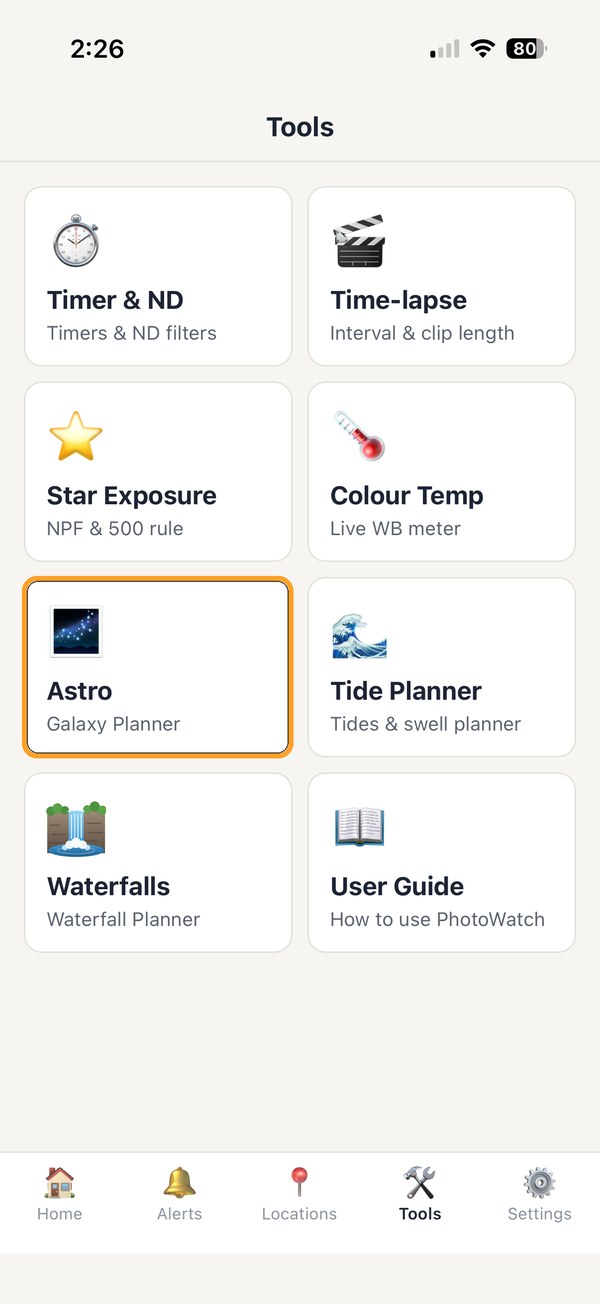
Tap the Tools tab at the bottom of the screen, then tap Astro.
2
Choose your spot
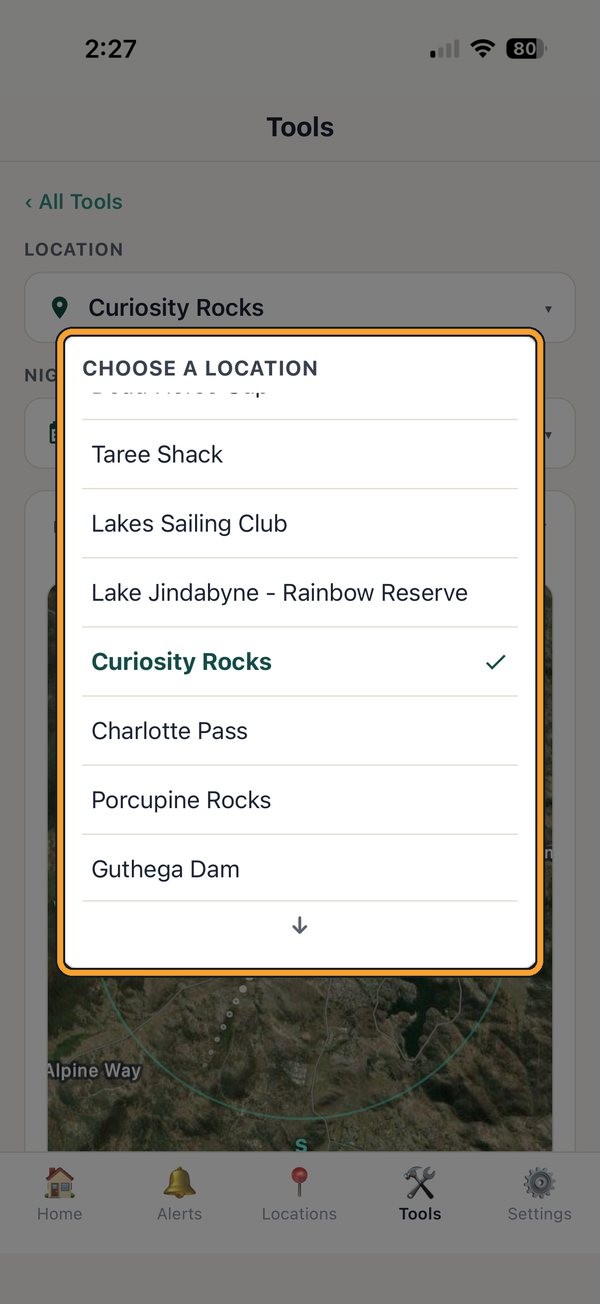
Tap the Location box and pick one of your saved locations. Dark spots away from town lights work best.
Tip: Planning a trip? For a spot in a different time zone from your phone, the night and every time are shown in the spot’s own local time, with the note The chosen location’s local time is shown under the location.
3
Pick the night
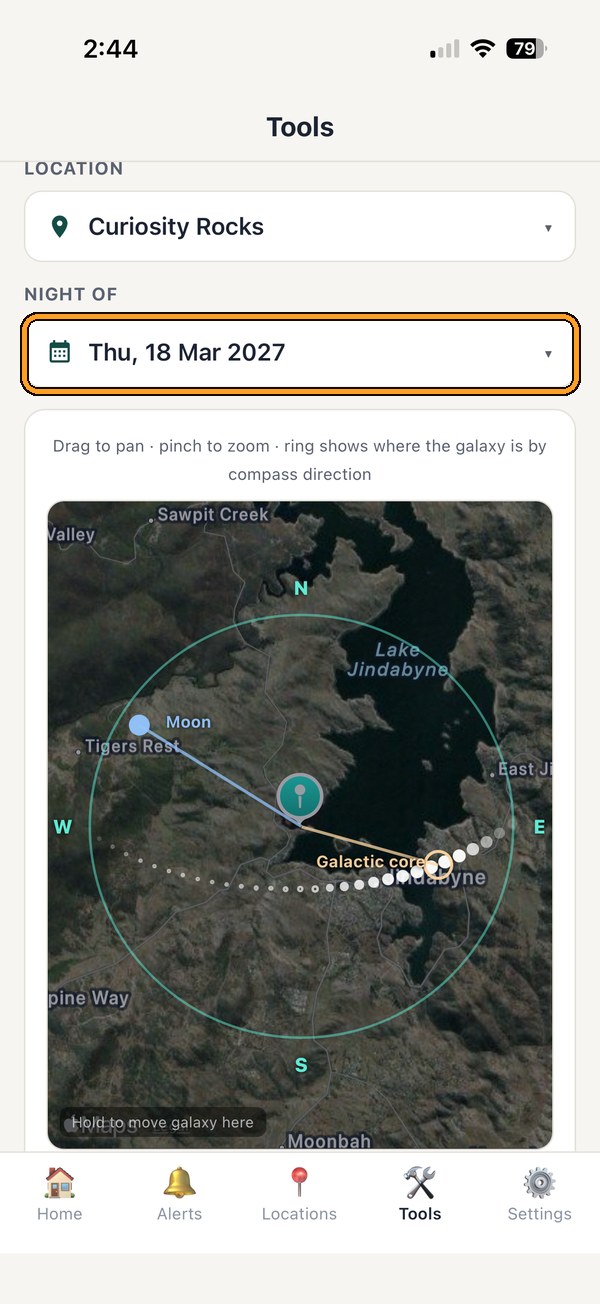
Tap Night of to open the calendar and choose any night, or jump straight to tonight.
4
Drag through the night
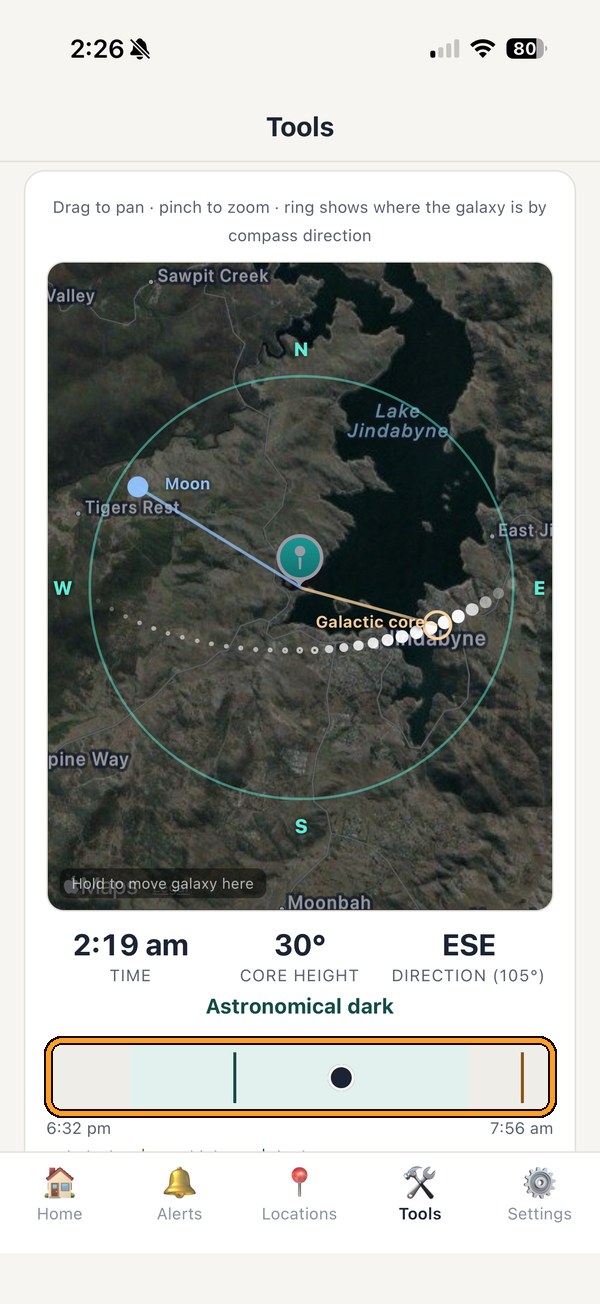
Drag the slider to move through the night. The map shows where the galactic core will be, with its height and direction underneath.
Tip: The teal part of the slider is proper dark sky.
5
Check the key times
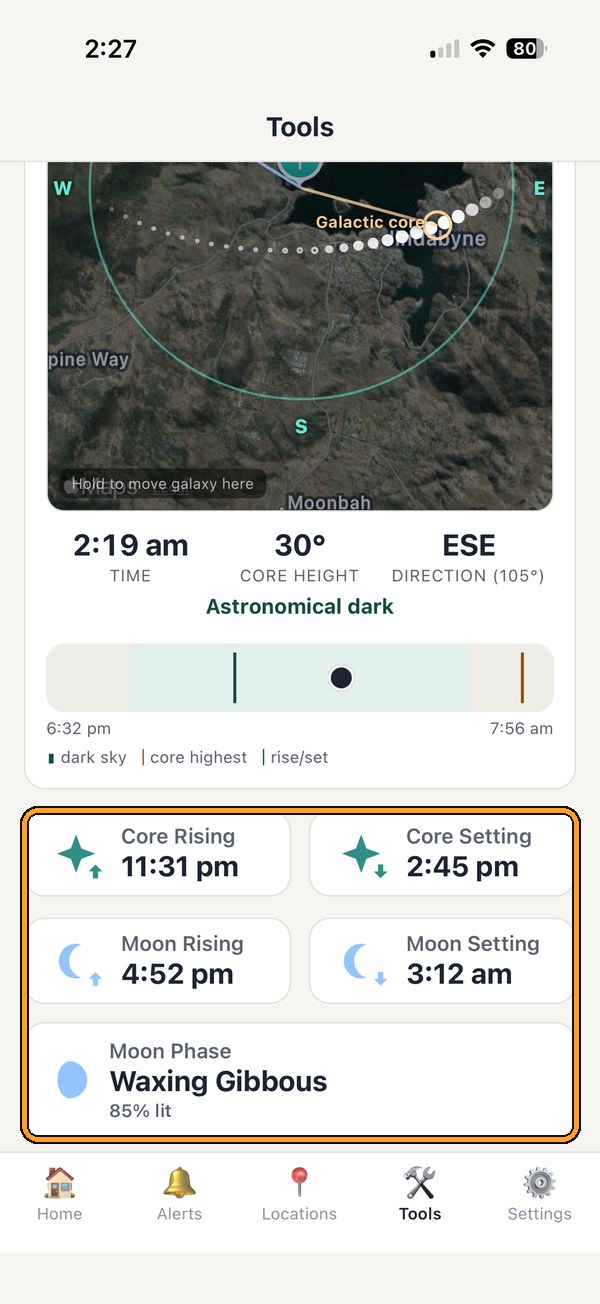
Scroll down to see when the core rises and sets, when the moon rises and sets, and how bright the moon is.
Tip: A bright moon washes out the Milky Way. Look for nights when the moon is down.
6
Create an alert
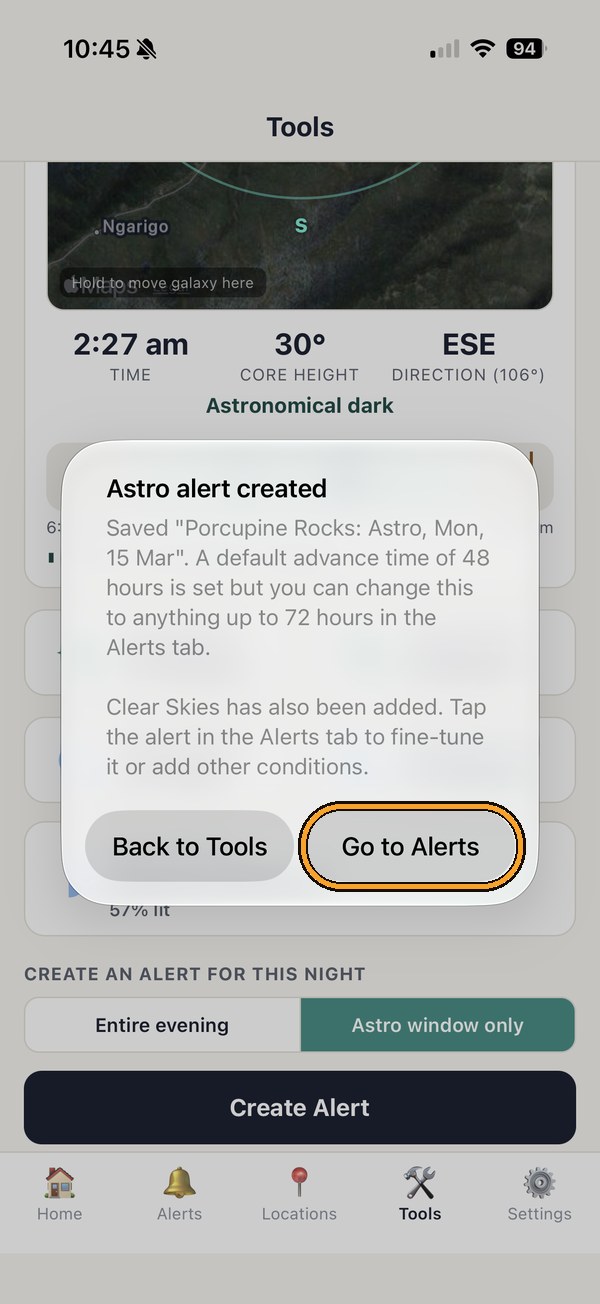
Under Create an alert for this night, choose Entire evening or Astro window only (the time on the slider). Tap Create Alert, then Go to Alerts. Clear Skies is added to the alert for you.
Tip: Your new alert gives you 48 hours’ notice. If the night is less than 49 hours away, it’s set with 1 hour’s notice instead. You can change this in the Alerts tab, up to 72 hours.
7
Find your new alert
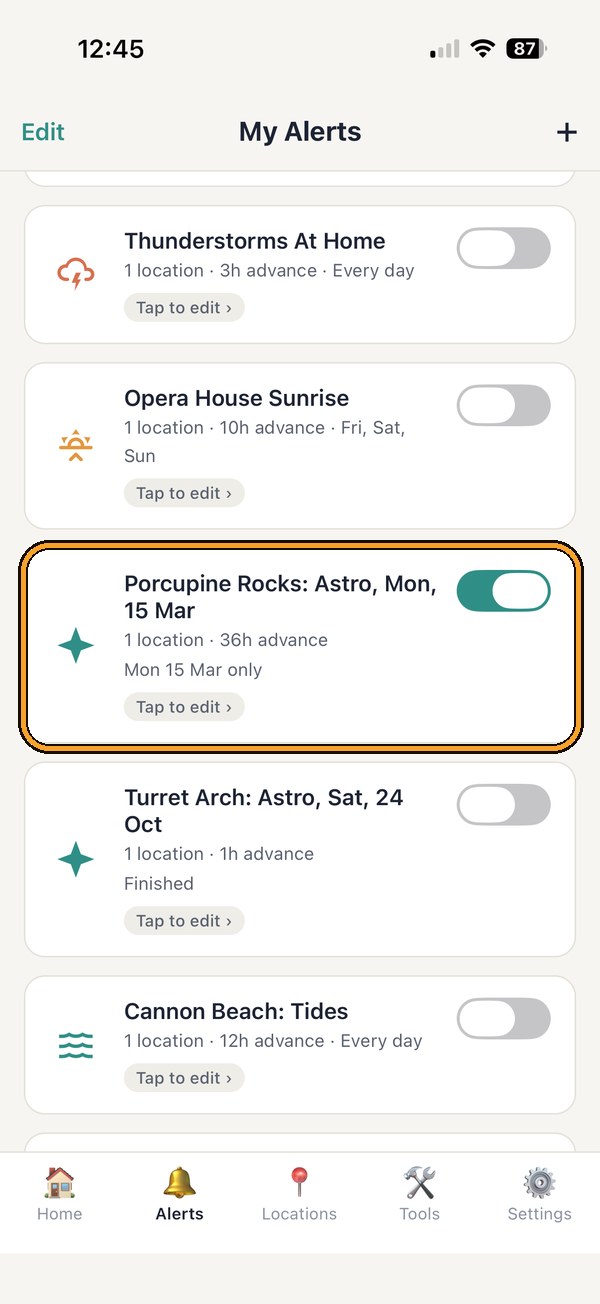
Your astro alert is now in the Alerts tab, with Galactic Core Visible and Clear Skies already added. Tap it to fine-tune it or add more conditions.
8
Fine-tune and save
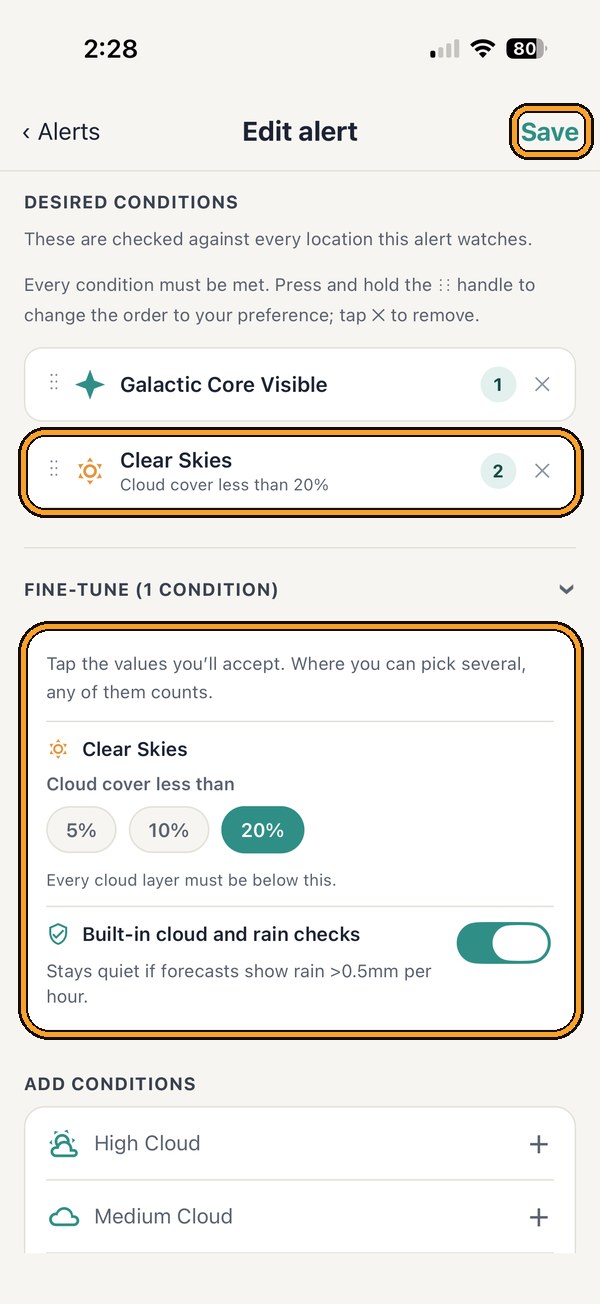
Clear Skies starts at cloud cover less than 20% on every layer. Open Fine-tune to make it stricter (less than 5% or 10%), add any other conditions you like, then tap Save. Every condition in an alert must be met, so you’ll only hear about nights when the core is up and the sky is clear.
Tip: Add Moon Below Horizon or Moon Phase to manage moonlit nights.
How an astro alert decides
Built-in checks, even if your alert doesn’t mention them
Low, medium or high cloud at 60% or more hides the stars, so PhotoWatch stays quiet. This applies to Astro window only alerts too.
If this much rain or more is forecast, no alert is sent.
Tip: Use Clear Skies and not High Cloud in an astro alert. If both are chosen, Clear Skies always wins.
Chasing a moody night? In the alert editor, switch off Built-in cloud and rain checks at the bottom of Fine-tune to turn these checks off for that alert.
That's it. Go get the shot!
PhotoWatch checks the forecast for you and sends a notification when a clear, dark night is on the way.